

You need better default screen-sharing settings because current options often reveal more than intended, risking sensitive info exposure. Complex controls make it easy to accidentally share private data or miss important privacy steps. By improving defaults, like hiding sensitive content automatically or providing simple previews, you can share confidently without frustration. This guarantees your team collaborates securely and efficiently. Keep going to discover how smarter defaults transform your sharing experience and protect your privacy.
Key Takeaways
- Default sharing settings often expose sensitive information, increasing privacy risks during meetings.
- Complex controls and unclear interfaces lead to accidental data disclosures.
- Better defaults can proactively prevent privacy breaches without user intervention.
- Simplified, privacy-focused defaults boost user confidence and reduce sharing errors.
- Enhanced screen-sharing defaults foster trust and improve overall security in collaborative environments.
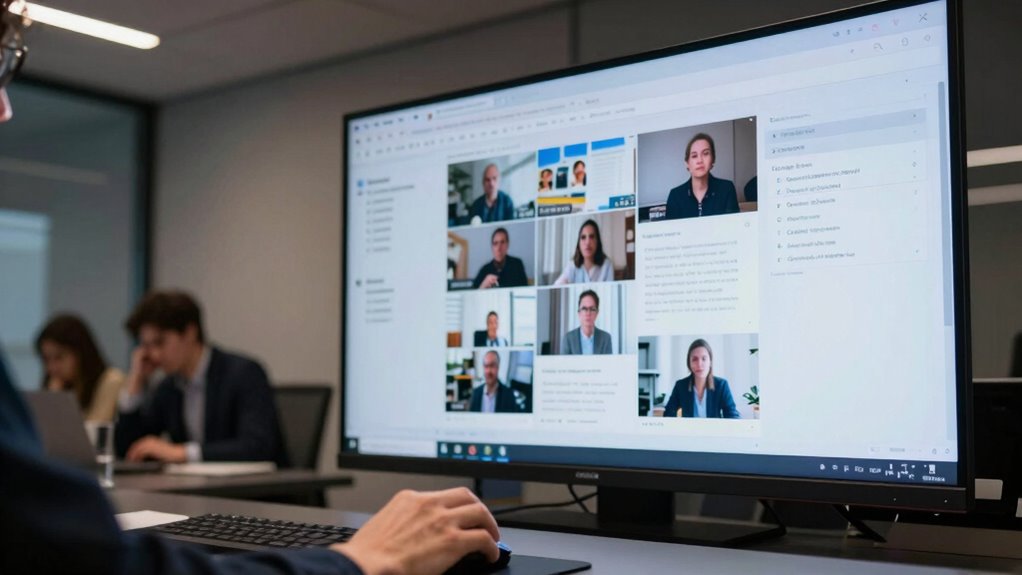
Many teams struggle with screen-sharing because the default settings often reveal more than intended or require extra steps to control what others see. This can lead to accidental exposure of sensitive information, which raises significant privacy concerns. When you’re in a meeting, you want to focus on the task at hand, not worry about whether your private data might slip through the cracks. Unfortunately, the current default configurations often don’t prioritize privacy, forcing you to scramble for controls at the last minute or, worse, risking a disclosure you didn’t mean to make. That’s a clear indication that user interface design for screen-sharing needs an overhaul—making privacy-preserving features intuitive and accessible should be a top priority. Additionally, many tools lack privacy-focused features, which could proactively prevent accidental data sharing and build user trust. Improving default privacy settings** is essential to help users avoid making mistakes during critical moments. The problem begins with the way most tools are designed. The user interface often presents a generic sharing option that requires you to manually select screens, applications, or windows to share, without clearly highlighting what’s visible to others. This can confuse even tech-savvy users, leading to mistakes. The interface should guide you smoothly through the process, emphasizing privacy settings upfront. For instance, a default mode could hide sensitive desktop elements or prompt you to confirm what you’re sharing before broadcasting anything. When controls are buried or overly complicated, you’re more likely to overlook critical steps, increasing the risk of unintentional exposure. Incorporating user-centered design principles can make these controls more accessible and reduce errors during sharing. Better user interface design can make a significant difference. If the sharing controls are clear, simple, and proactive about privacy, you’ll spend less time adjusting settings mid-meeting and more time focusing on the content. Features like automatic blurring of certain window types, quick toggles for sensitive information, or a preview mode that shows exactly what others see can help you feel more confident in what you’re sharing. These improvements not only enhance privacy but also streamline the user experience, reducing frustration and the potential for mistakes. Moreover, considering the user’s mental model when designing these features can help ensure controls align with how users naturally think about sharing and privacy, leading to fewer errors. When defaults are thoughtfully set, they can serve as an active privacy safeguard rather than just a passive option, making privacy an integral part of the experience. Ultimately, the default settings for screen-sharing should serve as a safeguard, not an afterthought. When teams have access to privacy-conscious defaults, it minimizes risks and fosters trust. Users shouldn’t have to become security experts just to ensure their private information stays private during meetings. Instead, intuitive design** and thoughtful defaults will empower everyone to share confidently, knowing that privacy concerns are built into the system. This shift is essential to create a more secure, user-friendly environment where collaboration doesn’t come at the expense of privacy.
![[2-Pack] Privacy Screen For Computer Monitor, 31.5-Inch 16:9 Aspect Ratio; Anti Spy/Bule Light/Glare And Eye Protection, 2 Install Ways Removable For Office, Airport, Cafe And Other Public Area; Diagonal 31.5 Inches, Width 27.45 Inches, Height 15.44 Inches](https://m.media-amazon.com/images/I/41yHKBTYYZL._SL500_.jpg)
[2-Pack] Privacy Screen For Computer Monitor, 31.5-Inch 16:9 Aspect Ratio; Anti Spy/Bule Light/Glare And Eye Protection, 2 Install Ways Removable For Office, Airport, Cafe And Other Public Area; Diagonal 31.5 Inches, Width 27.45 Inches, Height 15.44 Inches
[How To Determine The Screen Size]: Before Purchasing Our 31.5 inch monitor privacy screen, Please Measure The Size…
As an affiliate, we earn on qualifying purchases.
As an affiliate, we earn on qualifying purchases.
Frequently Asked Questions
How Do Default Screen-Sharing Settings Impact User Privacy?
Default screen-sharing settings directly impact your privacy because they determine what others can see when you share your screen. If defaults aren’t secure, privacy concerns rise, and sensitive information could be unintentionally exposed. You need to be aware of these settings because user awareness helps you adjust them to protect your privacy. By customizing defaults, you guarantee that only the intended content is shared, reducing risks and keeping your information safe.
Can Users Customize Default Screen-Sharing Options?
You can customize default screen-sharing options, giving you control over your experience. While default preferences set the initial sharing behavior, user customization allows you to tailor settings to suit your needs, balancing privacy and convenience. This juxtaposition empowers you to decide whether to share your entire screen or specific windows by default, enhancing your efficiency and privacy. Adjusting these preferences guarantees your screen-sharing aligns with your workflow and security expectations.
What Are Common Security Risks With Default Screen Sharing?
Default screen sharing can pose security risks if screen encryption isn’t enabled, exposing sensitive data to unauthorized viewers. Additionally, weak user permissions might allow unintended participants to view or control your screen. To mitigate these risks, you should confirm screen encryption is active and review user permissions regularly, limiting access only to trusted individuals. Proper security settings help protect your information during screen sharing in meetings.
How Do Defaults Influence Meeting Productivity?
Defaults are the silent conductors of your meeting symphony, guiding how smoothly everything flows. When defaults enhance your user interface and user experience, they boost productivity by reducing confusion and setup time. Clear, intuitive settings mean you spend less time fiddling and more time sharing ideas. Good defaults act like a reliable compass, helping you navigate meetings efficiently, making collaboration seamless and less frustrating for everyone involved.
Are There Industry Standards for Screen-Sharing Defaults?
There aren’t strict industry standards for screen-sharing defaults, but best practices prioritize user control and privacy concerns. You should be able to easily adjust who can share screens and what they can share, reducing accidental exposure of sensitive information. By customizing defaults, you maintain control over your meeting environment, ensuring privacy concerns are addressed while empowering users to share content confidently and securely.
![Free Fling File Transfer Software for Windows [PC Download]](https://m.media-amazon.com/images/I/41Vq6ZqHfjL._SL500_.jpg)
Free Fling File Transfer Software for Windows [PC Download]
Intuitive interface of a conventional FTP client
As an affiliate, we earn on qualifying purchases.
As an affiliate, we earn on qualifying purchases.
Conclusion
So, imagine if your team could instantly share screens without fumbling with settings or worrying about privacy mishaps. Better defaults aren’t just about convenience—they can prevent miscommunications and boost productivity. When apps prioritize sensible defaults, you spend less time troubleshooting and more time collaborating. It’s a simple change that could transform your meetings from frustrating to fluid, proving that sometimes, the smallest tweaks make the biggest difference in how effectively your team works together.
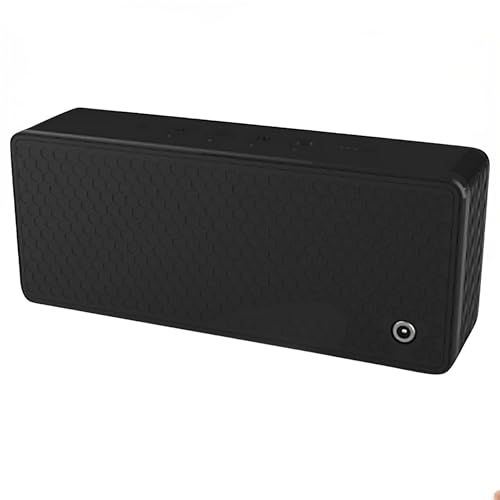
Spy Associates Ultrasonic Privacy Protector – Portable Acoustic Masking Device, Voice Privacy Tool for Secure Conversations in Meetings, Offices, Cars & Travel
ULTRASONIC SPEECH PRIVACY: Uses ultrasonic acoustic output (above 25 kHz, inaudible to humans) to help protect speech privacy…
As an affiliate, we earn on qualifying purchases.
As an affiliate, we earn on qualifying purchases.
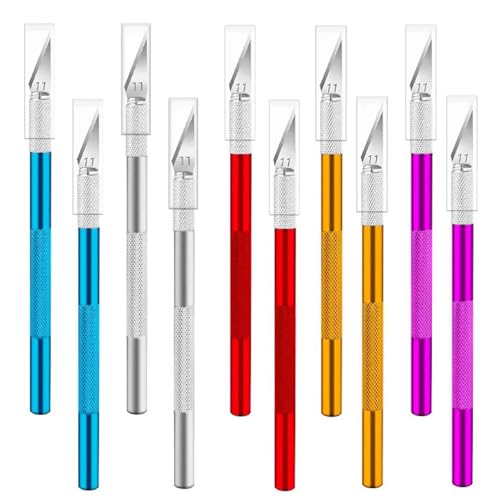
YTgilo 10PCS Utility Knife SK-5 High Carbon Steel Hand Carving Knife Set for Pumpkin Carving Mobile Phone Screen Protector Application DIY Art Template Cutting Tool Paper Leather Cutting
Aluminium alloy handle: Lightweight and durable with comfortable grip. Crafted entirely from aluminium alloy, it is lightweight (just…
As an affiliate, we earn on qualifying purchases.
As an affiliate, we earn on qualifying purchases.