

To reduce tech failure risk in important meetings, thoroughly check all devices like laptops, projectors, and Wi-Fi routers beforehand. Run a full test of internet, audio, and video equipment, and conduct a dry run in the actual space if possible. Keep backup plans ready, such as spare devices, cables, and a mobile hotspot. Regular maintenance and eco-conscious choices can extend equipment life. Keep exploring these strategies to guarantee your meetings stay on track even when tech challenges arise.

Get business pricing on office and shipping supplies
- Business-only prices and quantity discounts
- Tax-exempt purchasing
- Multiple users, one account, clear invoices
Key Takeaways
- Conduct thorough hardware checks and troubleshooting before the meeting to identify and resolve issues early.
- Implement robust backup protocols with spare devices, cables, and cloud-stored files for quick recovery.
- Perform dry runs to test all equipment, internet connectivity, and audiovisual components in the actual meeting environment.
- Prepare alternative internet options such as wired connections and mobile hotspots to ensure continuous connectivity.
- Communicate backup plans and procedures clearly to team members to ensure coordinated responses during technical failures.
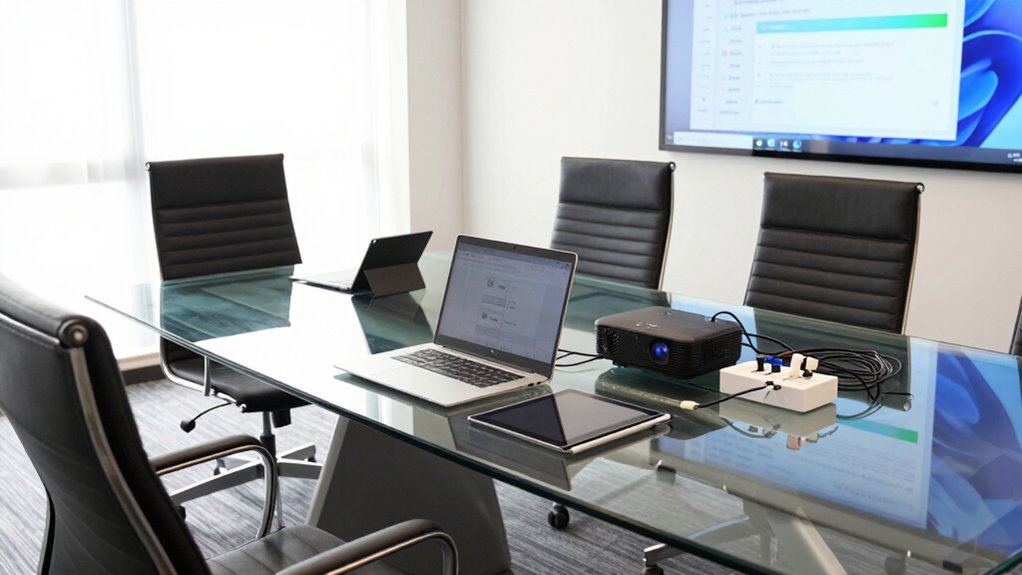
Tech failures can derail important meetings, but you can minimize this risk with proactive planning. The key is to prepare thoroughly and anticipate potential issues before they happen. Start by understanding your technology’s limitations and conducting regular hardware troubleshooting. Check all your devices—laptops, projectors, microphones, and Wi-Fi routers—all well before the meeting begins. Look for signs of wear or malfunction, such as sluggish performance or connectivity issues, and address these problems early. Keeping your hardware in top shape reduces the chance of unexpected breakdowns during critical moments.
In addition to troubleshooting, establishing solid backup protocols is essential. Always have a secondary plan in place—this could mean having a spare laptop, extra cables, or a backup presentation file stored on a cloud service. If your primary device fails, you can quickly switch to the backup without losing valuable time or disrupting the flow of the meeting. Consider using cloud storage for all your presentation materials so that you can access them from any device, even if your main hardware encounters issues. It’s equally important to verify that your backup devices are fully charged or connected to reliable power sources, so they’re ready when needed.
Testing your setup before the meeting is a simple but often overlooked step that can save you from last-minute surprises. Run through your entire presentation, connect to the internet, and test audio and video equipment. If possible, do a dry run in the actual meeting space, especially if you’ll be using unfamiliar technology or a different location. This helps identify potential problems early—like incompatible cables or weak Wi-Fi signals—giving you time to resolve them beforehand. Additionally, reviewing biodiversity and sustainability practices can inspire environmentally conscious choices when selecting and maintaining your tech equipment. Understanding your hardware’s limitations allows you to plan more effectively and avoid over-reliance on fragile technology. Incorporating sustainable technology practices can also extend the lifespan of your equipment and reduce future failures. Being aware of technological obsolescence can help you plan upgrades or replacements before issues arise. Moreover, staying informed about emerging innovations in technology can help you adopt more reliable solutions.
Having a plan B for your internet connection can also prevent disruptions. If your meeting relies heavily on a stable connection, consider having a wired Ethernet connection as a backup to Wi-Fi. Alternatively, a mobile hotspot can serve as a reliable contingency if your primary network drops out unexpectedly.
Finally, communicate your backup protocols to your team or participants. Let them know what to do if technical issues arise, so everyone remains calm and focused. When you blend regular hardware troubleshooting, comprehensive backup protocols, and thorough testing, you significantly reduce the likelihood of tech failures disrupting your crucial meetings. Your proactive approach not only keeps things running smoothly but also demonstrates professionalism and preparedness that others will appreciate.
Products Worth Considering

Dell XPS 13 9350 Copilot+ Laptop, 13.4-inch 120Hz Display, Intel Core Ultra 7 256V, 16GB RAM, 512GB SSD, Ubuntu Linux 24.04 LTS

HP Sprocket Portable 2×3 Instant Photo Printer, Lilac, with ZINK Paper Bundle

Canon PIXMA TR160 Wireless Portable Color Inkjet Printer
As an affiliate, we earn on qualifying purchases.
Frequently Asked Questions
What Are the Most Common Causes of Tech Failures During Meetings?
The most common causes of tech failures during meetings include hardware glitches and software bugs. You might experience hardware issues like faulty connections or malfunctioning devices, disrupting your flow. Software bugs can cause crashes or unresponsive applications. To prevent these problems, make sure your equipment is well-maintained, updated regularly, and tested beforehand. Having backup plans, like alternative devices or connection options, helps you stay prepared and minimizes disruptions during critical meetings.
How Can I Quickly Troubleshoot Unexpected Tech Issues?
When unexpected tech issues arise, think of yourself as a quick detective. First, check your remote collaboration tools and confirm your hardware is compatible with the meeting platform. Restart devices if needed, and switch to backup options like phone audio or a different device. Communicate with IT support if the problem persists, and keep calm to troubleshoot efficiently, minimizing downtime and keeping your meeting on track.
What Backup Plans Should Be in Place for Tech Failures?
You should establish clear contingency planning, like having backup devices and alternative connection options, to handle tech failures smoothly. Regular equipment maintenance guarantees everything functions properly beforehand. Test backup systems regularly to confirm they’re ready if needed. Prepare quick access to technical support and ensure your team knows the backup procedures. These steps minimize disruptions and keep your meetings on track, even when unexpected tech issues arise.
How Often Should I Test Meeting Technology Beforehand?
You should test your meeting technology at least 24 hours before, but ideally a few days prior, so you’re not caught in a tech disaster that feels like the end of the world. During this check, make certain your meeting etiquette and tech etiquette are sharp—verify audio, video, and connectivity. Regular testing reduces surprises, helps you stay professional, and keeps the meeting running smoothly, even under pressure.
What Training Can Improve Tech Reliability for Team Members?
You can improve tech reliability by providing team members with training on software updates and hardware maintenance. Encourage them to stay current with software updates to fix bugs and enhance performance. Offer hands-on sessions for hardware maintenance, like checking connections and cleaning equipment. Regular training guarantees everyone can troubleshoot common issues quickly, reducing the risk of tech failures during important meetings and keeping your technology running smoothly.
Conclusion
Now that you know the key steps to minimize tech failures, imagine the impact of flawless meetings where everything runs smoothly. But what if a critical glitch still occurs at the worst possible moment? Will you be prepared to handle it seamlessly? The difference between a successful, impactful meeting and one overshadowed by technical chaos could hinge on your last-minute readiness. Stay vigilant, stay prepared—because in the world of important meetings, the unexpected is always just around the corner.