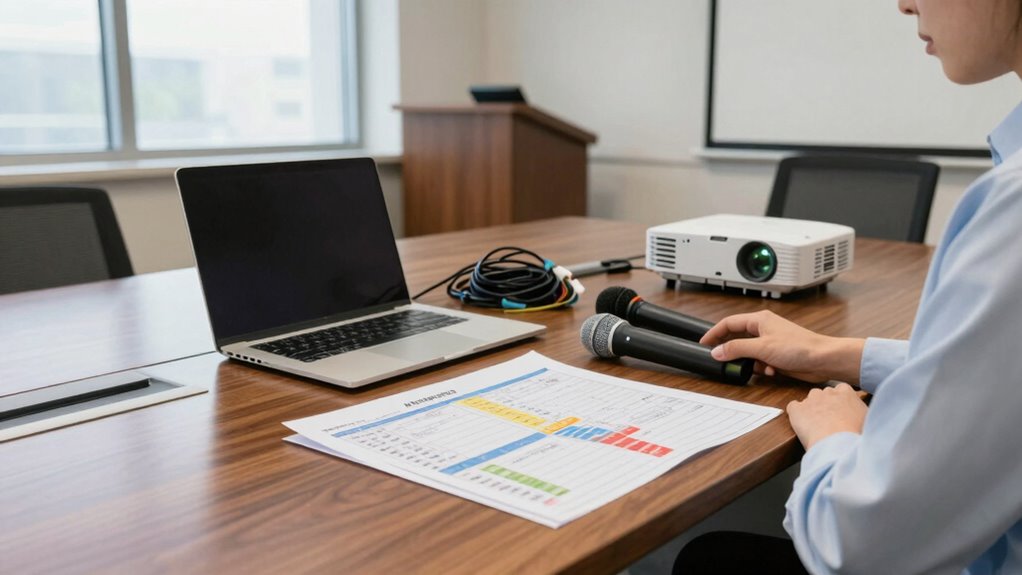
To prevent presentation-day panic, you need a thorough AV checklist that covers all technical details. Double-check your microphone, speakers, and cables, and test the sound system in the room. Have backup plans ready, like spare devices or printed notes. Familiarize yourself with the venue’s AV setup and policies, and confirm equipment functionality beforehand. Keep your checklist organized and review it multiple times. Stay prepared—continue to explore these tips to guarantee a smooth, stress-free presentation.
Key Takeaways
- Develop and follow a comprehensive AV checklist to cover all technical aspects before the presentation.
- Test all audio equipment and connections in the actual venue environment beforehand.
- Prepare backup devices, files, and printed materials to handle unforeseen issues.
- Familiarize yourself with the venue’s AV policies and support contacts in advance.
- Double-check microphone placement, sound levels, and network connectivity immediately prior to speaking.

Preparing for a presentation can be stressful, but having an AV checklist in place can make all the difference. When you’re getting ready to speak, technical issues are often the last thing you want to worry about. That’s why a thorough AV checklist guarantees you cover every detail, especially around audio setup. Before your presentation day, double-check that your microphone, speakers, and any audio cables are working properly. Test the sound system in the room beforehand, so you’re confident everything will run smoothly. If you’re using a laptop or other device, make sure your audio connects seamlessly, and remember to bring any necessary adapters or converters. Confirm the volume levels and clarity of your microphone to avoid surprises during your talk.
Having a detailed AV checklist ensures smooth audio setup and reduces presentation stress.
Beyond just setting up your audio, having backup plans is equally essential. Sometimes, technical failures happen unexpectedly—your microphone might stop working, or the projector might refuse to display your slides. To prevent panic, prepare alternatives in advance. Bring a spare microphone or a handheld mic if possible, and have a backup copy of your presentation saved on a USB drive or cloud storage. Also, consider having a printed version of your slides or notes in case digital issues arise. Communicate with the venue beforehand to understand what AV equipment they provide and if you can test it on the day of your presentation. This way, you’re not caught off guard when the time comes.
During the setup process, pay close attention to the placement of your audio equipment. Make certain the microphone isn’t obstructed and that speakers are positioned to deliver clear sound to the entire audience. If you’re using wireless technology, check the battery levels and connection stability. If something doesn’t seem right during your setup, don’t hesitate to troubleshoot immediately or ask for assistance. Time spent resolving minor issues before your presentation begins can save you from major stress later. Being aware of common AV issues can help you address problems quickly if they arise unexpectedly. Additionally, understanding the AV equipment available at the venue can give you better control over your setup and reduce last-minute surprises. Familiarizing yourself with the venue’s network infrastructure can also help prevent connectivity problems during your presentation. Knowing the venue’s technical support contacts and procedures can be a lifesaver if unexpected problems occur. It’s also helpful to review the venue’s AV policies to ensure compliance and avoid last-minute surprises.
Finally, incorporate a checklist into your preparation routine. Review it multiple times leading up to the event, and stick to it on the day of your presentation. This habit helps you stay organized and prevents last-minute surprises. When you’re confident that your audio setup is solid and backup plans are in place, you can focus on delivering your message with confidence. Being well-prepared with an AV checklist means you’re less likely to face technical setbacks, allowing you to present seamlessly and make a positive impression.
wireless microphone for presentations
As an affiliate, we earn on qualifying purchases.
As an affiliate, we earn on qualifying purchases.
Frequently Asked Questions
How Early Should I Arrive to Set up My AV Equipment?
You should arrive at least an hour early to set up your AV equipment. This gives you ample time to test your visual aids, verify your microphone works, and troubleshoot any technical issues. A timely start allows you to focus on audience engagement, making sure your visuals are clear and effective. Rushing at the last minute can cause stress and impact your presentation’s flow, so plan ahead for a smooth, confident delivery.
What Backup Plans Exist if My Projector or Mic Fails?
Think of your presentation as a ship sailing through unpredictable seas. If your projector or mic fails, you can rely on wireless connectivity to switch to a backup device or use a mobile hotspot. Keep a fully charged battery backup handy to power essential equipment if power drops. With these plans in place, you’ll navigate technical issues smoothly, ensuring your message reaches your audience without a hitch.
How Do I Troubleshoot Common AV Issues Quickly?
For quick AV troubleshooting during your presentation, stay calm and follow a systematic approach. Check your connections first—ensure cables are plugged in securely. If the projector or mic isn’t working, verify power sources and switch inputs if needed. Keep backup equipment ready, and test all AV components during your presentation preparation. Familiarize yourself with the setup beforehand, so you can swiftly address common AV issues and keep your presentation running smoothly.
Should I Bring My Own Extension Cords and Adapters?
Think of your presentation setup as a delicate dance—bringing your own extension cords and adapters is like carrying a backup partner. It guarantees your wireless connectivity stays strong and your power management remains smooth, even if the venue’s gear falters. Your own cords act as a safety net, preventing unexpected interruptions. By doing this, you maintain control, keep the flow seamless, and avoid last-minute scramble, making your presentation confident and worry-free.
How Can I Test My Presentation on the AV System Beforehand?
You should schedule presentation rehearsals to test your slides and equipment compatibility beforehand. During these rehearsals, verify that your laptop connects properly and that audio-visual components work seamlessly. Ask the tech team to assist with equipment calibration, ensuring everything is set to ideal settings. This proactive approach helps you identify issues early, so you won’t face surprises during the actual presentation, boosting your confidence and reducing stress.
As an affiliate, we earn on qualifying purchases.
Conclusion
By mastering your meticulous AV checklist, you diminish doubts and dodge disasters. Prepare proactively, double-check diligently, and stay confident. With consistent caution and careful cues, you’ll conquer your presentation with poise and professionalism. Remember, the key is to keep calm, carry your checklist, and avoid avoidable anxieties. When you’re well-well-prepared, presentation-day panic becomes a thing of the past—peace, poise, and professionalism prevail!
As an affiliate, we earn on qualifying purchases.
As an affiliate, we earn on qualifying purchases.