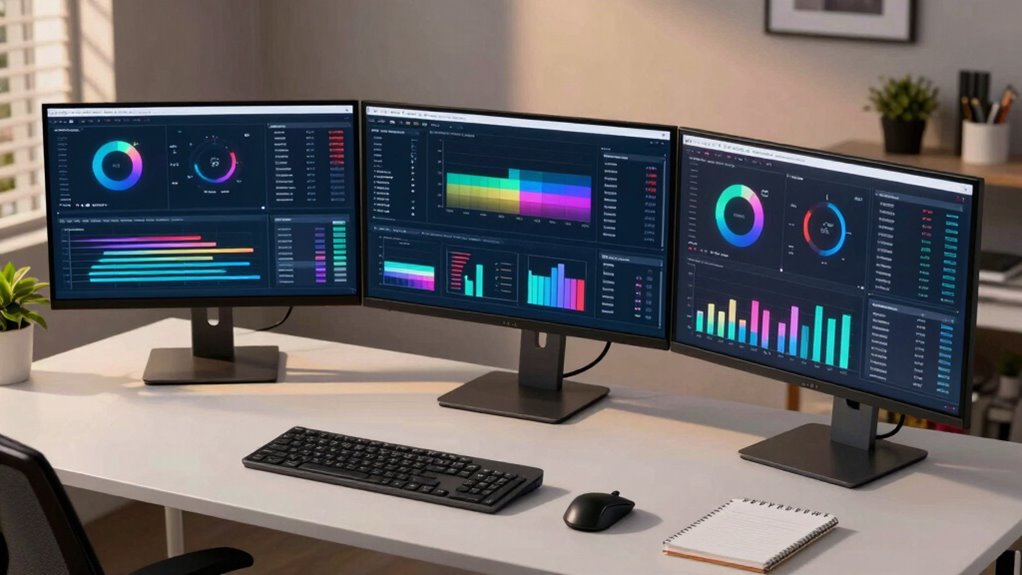

To plan a better multi-monitor setup for analytical work, start by positioning your primary monitor directly in front at eye level, with secondary screens arranged inward in a gentle curve for easy glanceability. Make sure monitors are about an arm’s length away to reduce eye strain and match their resolution and calibration for color consistency. Keep cables organized and use adjustable stands for ergonomic comfort. Paying attention to these details will help you create a workspace that boosts accuracy and efficiency—more tips follow to optimize your setup further.

Get business pricing on office and shipping supplies
- Business-only prices and quantity discounts
- Tax-exempt purchasing
- Multiple users, one account, clear invoices
Key Takeaways
- Position monitors at eye level in a gentle curve to reduce neck and eye strain during extended analysis sessions.
- Match monitor resolutions and calibrate displays regularly for consistent color, contrast, and visual clarity.
- Keep cables organized and use mounts to maximize desk space and prevent accidental disconnections.
- Adjust scaling settings for uniform text and icon size across all screens to ensure seamless workflow.
- Regularly review and optimize ergonomic placement to promote comfort, reduce fatigue, and enhance productivity.
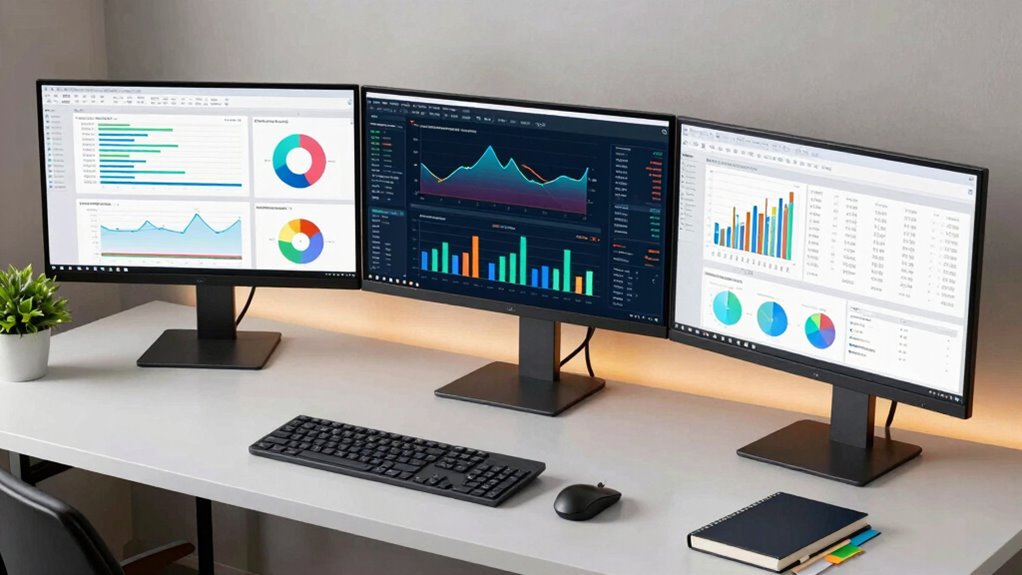
Setting up a multi-monitor workspace can substantially boost your productivity and streamline your analytical tasks, but only if you plan carefully. The first step involves thinking about ergonomic placement. You want your monitors arranged to reduce strain on your neck, eyes, and back. Position your primary monitor directly in front of you at eye level, ensuring the top of the screen is roughly at your eye height. The secondary monitors should be angled inward, forming a gentle curve that allows you to glance at each screen without turning your head excessively. Keep monitors at a comfortable distance—about an arm’s length away—to avoid eye strain. This setup helps you maintain better posture and minimizes fatigue during long working hours.
Once the physical placement is sorted, focus on display calibration. Proper calibration ensures that colors, contrast, and brightness are consistent across all screens, which is essential when working with detailed data or visualizations. Use built-in calibration tools or external calibration devices to fine-tune each monitor. Adjust the gamma, white balance, and color temperature so that the displays match as closely as possible. Consistent display calibration reduces the need to constantly adjust your eyes or switch mental focus, making your workflow smoother and more efficient. Additionally, maintaining color consistency across multiple screens enhances visual clarity and reduces eye strain during prolonged analytical sessions. Regularly checking and adjusting your calibration settings will help maintain this visual harmony.
Beyond physical arrangement and calibration, consider the alignment of your monitors in terms of resolution and scaling. Matching the resolution across all monitors prevents visual discrepancies that can cause eye fatigue or disorientation. If your monitors have different resolutions or sizes, use scaling settings to ensure text and icons appear uniform across screens. This consistency helps you work seamlessly, as you won’t need to constantly recalibrate your focus or move your eyes differently. Properly configuring display settings ensures a cohesive viewing experience that minimizes discomfort.
Cable management also plays a fundamental role in your setup. Keep cables organized and out of the way to avoid clutter, which could distract you or cause accidental disconnections. Using monitor stands or mounts can free up desk space and allow for more flexible positioning, further enhancing ergonomic placement. Well-managed cables also reduce the risk of damage and make troubleshooting easier if issues arise.
Finally, customize your workspace to suit your workflow. Use monitor calibration tools regularly to maintain color accuracy over time, and revisit your ergonomic setup periodically to make adjustments as needed. A well-planned multi-monitor setup isn’t just about adding screens; it’s about creating a balanced environment that promotes comfort, efficiency, and visual clarity, all of which are necessary for high-quality analytical work.
Products Worth Considering

FLEXISPOT EN1 Electric Standing Desk, 60 x 24 in, Black

FLEXISPOT Reversible L-Shaped Standing Desk, 71 x 63 Inches, Black

FLEXISPOT 60-Inch Executive Standing Desk with Drawers and CPU Cabinet
As an affiliate, we earn on qualifying purchases.
Frequently Asked Questions
What Is the Optimal Monitor Size for Detailed Analytical Work?
The ideal monitor size for detailed analytical work is typically between 27 and 32 inches. This size offers ample screen real estate, helping you view data clearly. Make sure your monitor is well-calibrated for color accuracy, especially if visual precision matters. Proper calibration improves detail perception, reducing eye strain and errors. A larger screen combined with accurate color calibration enhances your ability to analyze complex data efficiently and accurately.
How Do I Manage Cables for a Clean Multi-Monitor Setup?
Like a master conductor, you can manage cables to keep your workspace harmonious. Use cable clips, sleeves, or ties to route cables neatly along monitor arms or desk edges. Label each cable for easy identification. Invest in a cable management tray or under-desk mount to hide excess wiring, promoting better desk organization. This not only enhances aesthetics but also prevents accidental unplugging or damage, keeping your analytical workflow smooth and efficient.
Which Operating Systems Support Advanced Multi-Monitor Configurations?
Most modern operating systems, like Windows, macOS, and Linux, support advanced multi-monitor configurations, including color calibration and monitor mounting options. You can easily set up different display modes, adjust color profiles for accurate calibration, and arrange monitors for ideal workflow. These systems allow you to organize your workspace efficiently, ensuring seamless shifts between screens, whether you’re working with multiple monitors mounted on stands or arms.
How Can I Prevent Eye Strain With Multiple Monitors?
To prevent eye strain with multiple monitors, you should focus on ergonomic positioning and color calibration. Position your screens at eye level, keeping a comfortable distance to reduce neck and eye fatigue. Use color calibration to guarantee consistent brightness and contrast across all monitors, minimizing eye discomfort. Take regular breaks and follow the 20-20-20 rule. These steps help you work efficiently while protecting your eyes during extended analytical tasks.
What Are the Best Accessories to Enhance Multi-Monitor Productivity?
Enhance your multi-monitor productivity with essential accessories like ergonomic stands, adjustable monitor arms, and high-quality keyboard and mouse setups. Prioritize color calibration tools to guarantee accurate visuals, reducing eye strain and boosting precision. Dual monitor risers and cable management accessories keep your workspace tidy and aligned. These tools help you work comfortably and efficiently, making multitasking seamless and reducing fatigue during long analytical sessions.
Conclusion
With careful planning, your multi-monitor setup becomes a well-oiled machine, turning your workspace into a panoramic vista of productivity. Think of it as crafting a symphony where each monitor plays a essential note, harmonizing your analytical tasks seamlessly. When you optimize placement, resolution, and ergonomics, you create not just a workspace, but a powerful command center. Embrace these tips to transform your screens into a symphony of efficiency—your best work is just a setup away.