To set up an ergonomic desk for long hours, guarantee your chair is adjusted so your feet are flat and knees are at a 90-degree angle. Position your monitor directly in front of you at eye level, about an arm’s length away. Keep your keyboard and mouse close, with elbows at your sides and wrists straight. Support good posture with ergonomic accessories and take regular breaks to stretch and move. If you continue exploring, you’ll find even more tips to keep comfortable throughout your day.

Get business pricing on office and shipping supplies
- Business-only prices and quantity discounts
- Tax-exempt purchasing
- Multiple users, one account, clear invoices
Key Takeaways
- Adjust your chair to keep feet flat, knees at 90 degrees, and hips slightly higher than knees for proper support.
- Position your monitor directly in front at eye level, about an arm’s length away, to reduce neck strain.
- Keep your keyboard and mouse at elbow height with wrists straight, and use ergonomic accessories for support.
- Maintain good posture by supporting the lower back and avoiding slouching or twisting during work.
- Take regular breaks to stand, stretch, and change positions to prevent fatigue and musculoskeletal issues.
If you spend long hours at your desk, setting up an ergonomic workspace is essential to prevent discomfort and boost productivity. The right chair height is fundamental; you want your feet flat on the floor, with your knees roughly at a 90-degree angle. Adjust your chair so that your thighs are parallel to the ground, avoiding pressure points or excessive pressure on your lower back. When your chair height is correct, it encourages good posture and reduces strain on your hips and legs. Remember, your hips should be slightly higher than your knees, and your lower back should be well-supported by your chair’s lumbar curve. This proper positioning helps prevent long-term musculoskeletal issues.
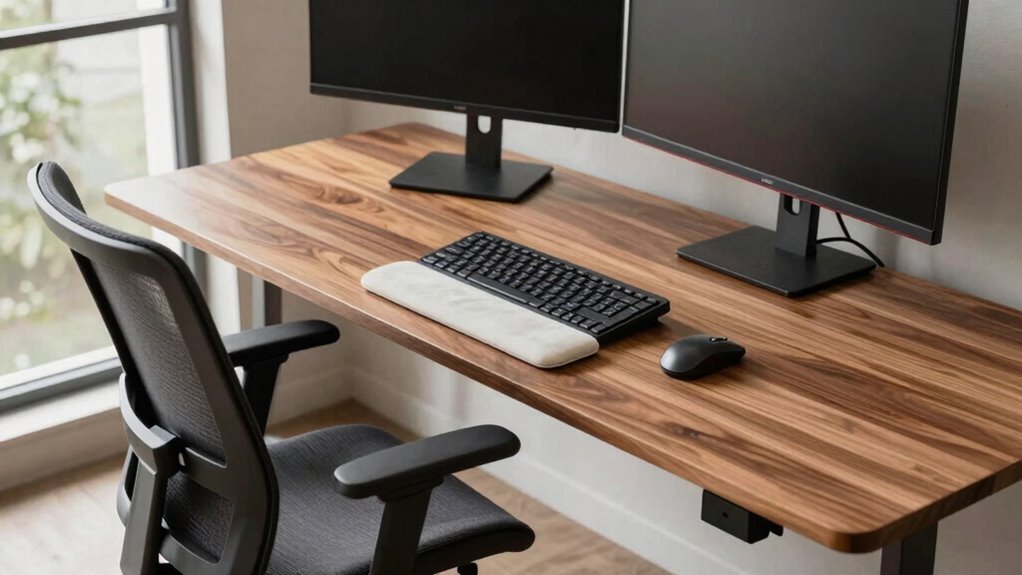
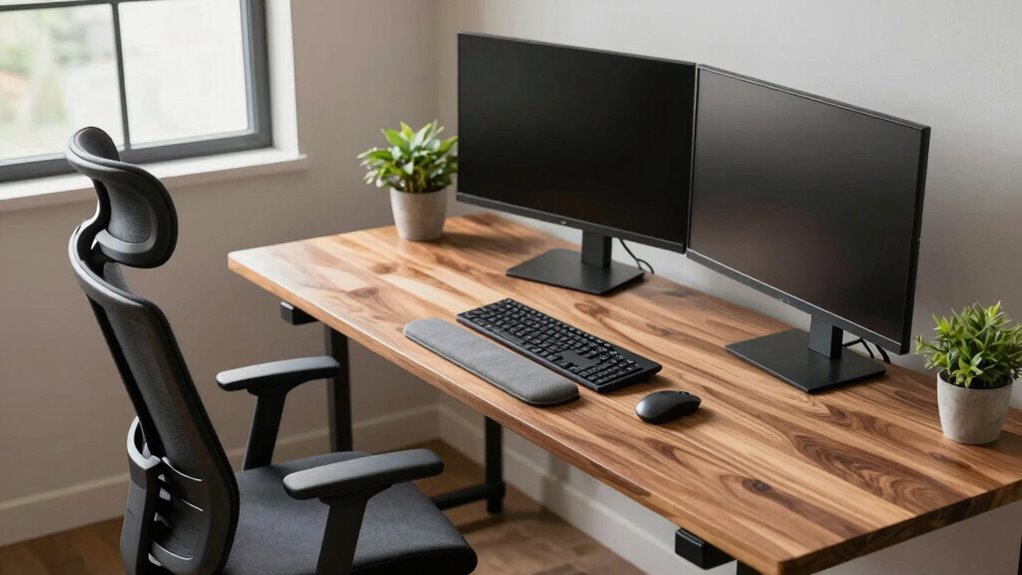
Next, focus on monitor placement, which is just as critical. Your monitor should be positioned directly in front of you, at eye level, so you don’t have to tilt your head up or down. The top of the screen should be about at your eye height or slightly below it, allowing your gaze to naturally fall on the center of the screen without straining your neck. The monitor should be about an arm’s length away, giving you enough distance to view the entire screen comfortably without leaning forward or squinting. Proper monitor placement minimizes neck and eye strain, making it easier to work for extended periods. If you use multiple screens, align them so your primary monitor is directly in front of you, and angle secondary screens slightly inward, keeping your head in a neutral position. Maintaining an ergonomic workspace helps promote overall comfort and reduces fatigue during long work sessions. Incorporating adjustable monitor stands can further optimize your setup and prevent neck strain. Additionally, using ergonomic accessories like keyboard trays or footrests can enhance your comfort and support proper posture.
Position your monitor directly in front of you at eye level, about an arm’s length away, to reduce neck and eye strain.
In addition to chair height and monitor placement, make sure your keyboard and mouse are positioned so your elbows rest comfortably at your sides, forming about a 90-degree angle. Your wrists should remain straight and supported, avoiding any bending that could cause discomfort or repetitive strain injuries. A good rule of thumb is to keep your keyboard slightly below or level with your elbows, allowing your hands to rest naturally while typing. Keep frequently used items within easy reach to reduce unnecessary stretching or twisting.
Finally, take regular breaks to stand, stretch, and move around. No matter how well you set up your workspace, sitting in the same position for hours isn’t healthy. Incorporating ergonomic principles into your routine will ensure your workspace remains comfortable and supportive over time.
ergonomic adjustable office chair
As an affiliate, we earn on qualifying purchases.
As an affiliate, we earn on qualifying purchases.
Frequently Asked Questions
How Often Should I Take Breaks During Long Working Hours?
You should take a break every 30 to 60 minutes during long working hours. During these breaks, focus on improving your workplace posture and doing quick stretch routines to reduce muscle strain and increase circulation. Regular breaks help prevent fatigue and discomfort, keeping you alert and productive. Remember, consistent movement is key to maintaining your health, so set reminders if needed to guarantee you don’t skip these important intervals.
What Are the Best Types of Ergonomic Chairs?
You should choose ergonomic chairs with high-quality chair material like breathable mesh or padded fabric for comfort. Prioritize chairs with excellent lumbar support to maintain proper spine alignment during long hours. Look for adjustable features such as seat height, armrests, and recline angle, which help customize the chair to your body. This guarantees you stay comfortable and supported, reducing fatigue and preventing pain over extended periods of work.
How Do I Adjust My Monitor for Optimal Eye Comfort?
You might think monitor calibration is complicated, but it’s simple and essential for reducing eye strain. Position your monitor so the top is at or just below eye level, about an arm’s length away. Adjust brightness and contrast to match your ambient light. Ensuring proper monitor setup helps protect your eyes during long hours, making your workspace more comfortable and reducing fatigue. Just a few tweaks can make a big difference.
Are Standing Desks Better Than Sitting Desks?
Standing desks often offer better health benefits than sitting desks, as they reduce the risk of back pain and improve circulation. However, sitting desks can be more comfortable for long periods if you have proper ergonomic setup. Ideally, you should alternate between standing and sitting throughout the day to prevent fatigue and promote better posture. Both options can be effective if adjusted correctly to support your comfort and productivity.
What Accessories Can Improve Ergonomic Comfort?
To boost your comfort, bring in beneficial accessories like keyboard accessories that boost typing posture and footrest options that support your feet and improve circulation. These additions help reduce strain and foster a more flexible, functional workspace. Using supportive cushions or ergonomic mouse pads can also enhance comfort. Incorporating these accessories guarantees you stay comfortable, focused, and fatigue-free during long hours at your desk.
As an affiliate, we earn on qualifying purchases.
Conclusion
By setting up your desk ergonomically, you’re investing in your health and productivity. Imagine Sarah, a freelance writer, who struggled with neck pain and fatigue until she redesigned her workspace. Now, she feels more energized and focused, turning her passion into a sustainable career. Small changes make a big difference—prioritize comfort, adjust your setup, and enjoy long, pain-free hours at your desk. Your future self will thank you for taking care of your body today.
ergonomic keyboard and mouse set
As an affiliate, we earn on qualifying purchases.
As an affiliate, we earn on qualifying purchases.
As an affiliate, we earn on qualifying purchases.
Fall Picks
fall essentials
As an affiliate, we earn on qualifying purchases.