
TL;DR

Get office and shipping supplies delivered free — and shop member deals
- Fast, free delivery on millions of items
- Access to Prime Big Deal Days deals on October 6–7
- Prime Video, Amazon Music and more included
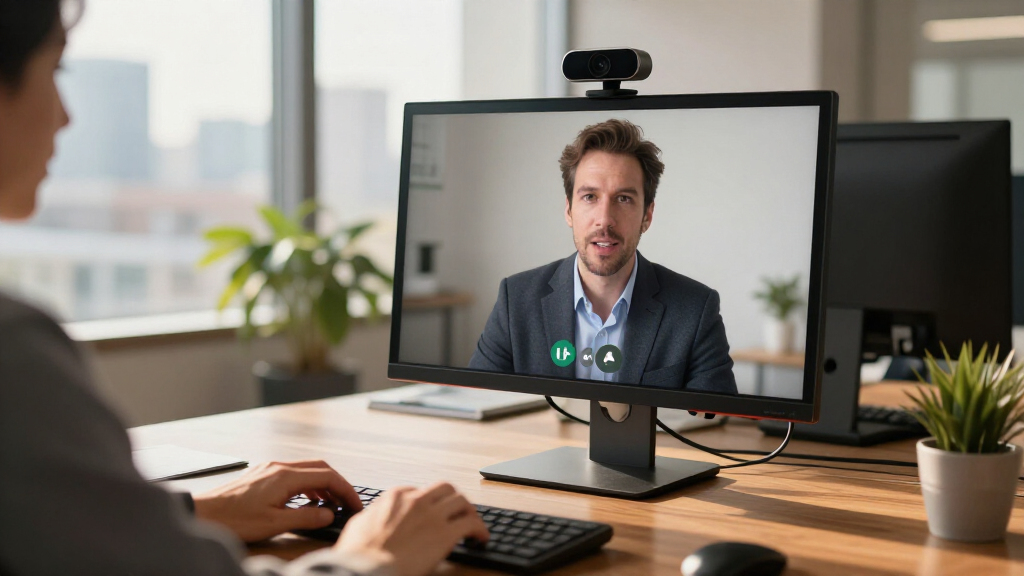
For an executive desk, compare the 4K Webcam for PC with Autofocus, NexiGo N60 Pro, EMEET C60E, and Logitech 4K Webcam by the features you will actually use: autofocus, zoom, lighting, audio, privacy, and compatibility. A 4K camera can provide sharper capture and useful cropping, but your lighting, microphone, video-call settings, and network often matter more to what colleagues see and hear.
Your camera can capture 4K detail and still make you look washed out if a bright window sits behind your desk. On an executive call, people notice the whole picture: your face, your voice, the framing, and whether the camera stays steady while you speak. Resolution is only one part of that impression.
If a webcam you had in mind—the 4K Webcam with Light and Microphone for PC—is difficult to find, you can compare current alternatives without assuming that one product page tells the whole story. This guide looks at the 4K Webcam for PC with Autofocus, NexiGo N60 Pro, EMEET C60E Dual-Camera, and Logitech 4K Webcam, using the listed specifications as a starting point rather than a promise about performance.
You’ll learn what 4K does and does not guarantee, which features suit a one-person executive desk, and how to check compatibility before buying. You’ll also get a simple setup process: because a camera that sits at eye level in soft light often gives you a more polished image than a higher-resolution camera aimed at the ceiling.
Treat 4K as capture capability, not a guarantee that Zoom, Teams, or Google Meet will transmit a 4K stream.
For one-person executive calls, prioritize eye-level mounting, a comfortable field of view, soft front lighting, and clear audio.
Compare the alternatives by the features you will use: autofocus and microphones, a privacy cover and zoom, hybrid zoom and lighting, or a listed high frame ra…
Verify exact resolution and frame-rate combinations, operating-system support, connector type, software needs, and mounting details before buying.
Test the camera in your actual office: check window glare, autofocus behavior, echo, framing, cable stability, and privacy controls.
Choose a 4K Webcam by Your Office, Not Its Headline Resolution
The best 4K webcam for an executive desk setup is the one that produces a steady, well-lit image with framing that suits your calls and works with your computer and meeting apps. A 4K label tells you about capture resolution; it does not promise natural skin tones, clean sound, reliable autofocus, or 4K delivery during a meeting.
That distinction matters in a real office. Imagine you sit with a sunlit window behind your chair: the camera may darken your face to protect the bright background, leaving you looking like a silhouette. A softer lamp placed in front of you can fix that problem more effectively than moving from a lower-resolution camera to a 4K model.
Start with the way you use calls. If you stay seated and speak to clients one-on-one, favor an eye-level position, a comfortable single-person field of view, and dependable focus. If you show documents or move around to present a product, autofocus and usable digital zoom may matter more. If your conference room includes several people, a wider view or a camera designed for group framing could be a better fit than a tight desk camera.
Resolution still has a job. A 4K sensor can preserve detail and give software more image area to crop, even when a service sends a lower-resolution stream. But your colleagues may see a softer image because the meeting platform, computer, USB connection, network, or call settings limit the outgoing video.[1] In plain terms: 4K can give the camera more to work with, but it cannot force every link in the call to carry 4K.
For example, if your laptop is on a crowded wireless connection and your company meeting settings cap video quality, buying a higher-resolution webcam may not change the image your client sees. You might get more practical value from moving the camera above your monitor, improving the light on your face, and using a headset. Treat the headline resolution as one useful specification, not the final verdict.
4K webcam with autofocus and microphone
As an affiliate, we earn on qualifying purchases.
As an affiliate, we earn on qualifying purchases.
Compare Four Alternatives Before You Replace Your Old Webcam
If your original webcam is unavailable or its listing has changed, compare alternatives by the features that overlap with your needs: resolution, zoom, frame rate, lighting, and compatibility. The specifications below come from the supplied product descriptions; they are a shortlist for checking, not independent test results or guarantees of current software support.
| Option | Listed resolution | Listed standout features | Check before choosing |
|---|---|---|---|
| 4K Webcam for PC with Autofocus | 3840 × 2160 at 30 fps; 1080p at 60 fps | Up to 8× digital zoom; dual noise-canceling microphones; Windows 7–11, macOS 10.6+, Chrome OS 29+ | Confirm the exact model, connector, app support, and whether the microphone suits your room. |
| NexiGo N60 Pro | 4K UHD | 4× digital zoom; listed 1080p at 60 fps; privacy cover; Zoom, Teams, and Google Meet compatibility listed | Confirm which resolution and frame rate apply together, and check whether any controls require software. |
| EMEET C60E Dual-Camera | 4K dual-camera | Up to 11× hybrid zoom; RGB lighting; Windows 10/11 and macOS 10.14+ listed | Check how the dual-camera view behaves at a single-person desk and whether RGB lighting fits your workspace. |
| Logitech 4K Webcam | 4K Ultra HD | Up to 90 fps listed; Windows, Mac, and ChromeOS support listed | Verify the exact version, supported modes, mounting options, and current operating-system requirements. |
On paper, the 4K Webcam for PC with Autofocus most closely echoes a basic webcam with built-in audio and zoom. The NexiGo N60 Pro adds a listed privacy cover and clear app compatibility claims, while the EMEET C60E emphasizes hybrid zoom and lighting. The Logitech entry stands out for its stated maximum frame rate, but that number does not tell you which settings are supported at once.
Picture a manager who spends most calls seated at the same monitor. They may prefer a simple mount, privacy cover, and predictable view over 11× zoom they rarely use. A sales lead who frequently holds small objects up to the camera may value autofocus and zoom more. Select the row that solves your actual workday problem, then verify the current product listing and manufacturer documentation before ordering.
As an affiliate, we earn on qualifying purchases.
Get More From 4K Without Expecting Every Call to Stream in 4K
4K usually describes a capture size near 3840 × 2160 pixels, but the video sent to colleagues can be smaller. A webcam, your computer, its USB connection, the meeting platform, your account settings, and network conditions all play a part in the final picture.[1] A camera can record detailed video while your meeting app sends a lower-resolution stream.
Think of it like a high-resolution photograph shown through a small, foggy window. The source file may contain plenty of detail, but the viewing path determines how much survives. In a call, that path can shrink the picture or reduce its quality to keep the meeting stable. A 4K sensor can still help with cropping and digital zoom, yet it cannot override a platform’s limits or a weak connection.
Before buying for a specific service, check its current video requirements and your organization’s account settings. Also check whether the webcam can run at its advertised resolution and frame rate over the connection you plan to use. The Logitech listing, for example, gives a maximum of up to 90 fps, while the autofocus webcam lists 4K at 30 fps and 1080p at 60 fps. Those specifications describe different modes; they do not mean every meeting will use them.
Here’s a practical scenario: you use a 4K webcam with a 1080p laptop display. You do not need a 4K monitor for the camera to capture at 4K. Your computer can scale the image for its screen, and the meeting service may send it at a lower resolution. The monitor affects what you see on your desk, not whether the camera sensor can capture more pixels.
For an executive call, ask what the extra detail will do for you. If you want a clean crop when you shift slightly or show a product, higher-resolution capture may help. If you sit still and the service sends a modest stream, lighting, focus, and audio deserve at least as much attention. Check the whole chain, not only the number printed on the box.
As an affiliate, we earn on qualifying purchases.
Pick the Features That Make You Look and Sound Professional
For a polished executive image, prioritize light, framing, focus, audio, and privacy alongside resolution. These are the parts your meeting partners experience directly: a balanced face, a camera that does not hunt for focus, speech they can understand, and a workspace that feels intentional. A feature only earns its place if it works in your calls.
A single-person desk generally benefits from a moderate or narrower field of view. It keeps the frame on you and avoids revealing the hallway, laundry basket, or stack of boxes behind your chair. A wider view makes sense if a colleague often joins beside you or you need to show a small conference area. The right field of view depends on the room and the distance between you and the camera.
Autofocus helps when you move or hold an object toward the lens, but it can shift focus at awkward moments. Digital zoom gives you tighter framing without moving the webcam, but it can magnify image imperfections because it enlarges part of the captured picture. A model’s stated zoom range does not tell you how natural each setting will look in a business call.
Use this quick decision list before you choose:
- Set your main call type. Choose a single-person view for executive conversations, or a wider view when several people need to fit.
- Check the light. If the desk faces a bright window, plan a soft front light or turn the setup so the window falls beside you.
- Match focus and zoom to your habits. Pick autofocus if you present objects; avoid paying attention to a zoom feature you will never use.
- Plan your audio. A built-in microphone can be convenient, but a headset or dedicated mic often gives clearer speech in a reflective office.
- Confirm privacy and mounting. Look for a physical shutter or clear way to disable the camera, plus a mount that holds it near eye level.
Consider a director who wants to show a small sample product during calls. Autofocus and a few zoom options could make that demonstration easier. A chief financial officer who stays seated in a quiet office may get more from a privacy shutter, stable mount, and comfortable framing. Buy for the real scene, not a feature checklist alone.
best webcam for video conferencing
As an affiliate, we earn on qualifying purchases.
As an affiliate, we earn on qualifying purchases.
Make Your Desk Lighting Work Before You Blame the Camera
Good front lighting usually improves a webcam image more than a resolution upgrade does. Your camera has to balance the light it sees, and a bright background can make your face look dim. Put a soft light in front of you or turn the desk so the window illuminates your face from the side instead of sitting directly behind you.
Look at the image in your meeting preview before a call. If your face appears gray while the window burns white, move the camera or chair, close part of the blind, or add a diffused desk lamp. A harsh lamp pointed straight at you can create shiny patches on your forehead and sharp shadows under your eyes. Aim for soft, even light—the kind that makes the room feel calm rather than like an interrogation scene.
The discontinued-or-hard-to-find product in the brief lists three-color adjustable lights, and the EMEET C60E listing mentions RGB lighting. Treat those descriptions as features to investigate, not proof that the light will flatter every office. RGB lighting can add color to a background, while a neutral soft light aimed at your face addresses the more important job of making you visible.
Imagine two setups. In the first, a 4K webcam with a bright window behind the user turns their face into a shadow. In the second, a less elaborate camera sits at eye level with a lamp bounced off a pale wall. The second person may look clearer and more approachable, even though their camera has fewer headline features. The setup—not the spec sheet—creates the useful image.
Keep the background tidy but believable. A plant, a shelf, or a clean wall can add depth; a bright monitor or uncovered window behind you can pull attention away from your face. If your room has mixed lighting, such as blue daylight and a warm yellow bulb, test the camera preview and adjust one source at a time. Small changes are easier to judge than changing every setting at once.
Match Microphones, Privacy, and Connections to Your Daily Calls
A webcam microphone is convenient, but it is not automatically the best choice for your voice. The autofocus webcam listing names dual noise-canceling microphones, and the older light-and-microphone model lists a built-in mic. The supplied details do not specify a microphone for every alternative, so check the exact product documentation rather than assuming that 4K includes good audio.
Room sound changes the result. In a carpeted study with curtains and a closed door, a built-in microphone may be perfectly workable for a short internal call. In a glass-walled office with a hard desk, your voice can bounce around and sound hollow. A headset or dedicated microphone can give you more consistent speech, especially when several people on the call depend on your instructions.
Before a high-stakes meeting, record a short test in the same room where you work. Listen for keyboard clicks, fan noise, echo, and whether your voice drops when you turn your head. For instance, if a client says your voice sounds distant whenever you look at a second monitor, try a headset mic before replacing the webcam. That small change may solve the actual problem.
Privacy and connection deserve equal attention. The NexiGo N60 Pro listing includes a privacy cover; other models may offer a shutter or rely on software controls, so confirm the details. A physical cover gives you a visible, simple way to block the lens between calls. Also check whether the camera uses USB-A or USB-C, whether an adapter is included, and whether the cable reaches your preferred mount without pulling on the monitor.
Compatibility lists are useful but can age. The supplied listings cite Windows, macOS, and Chrome OS support in different combinations, with minimum versions varying by model. If you use a managed work laptop, check whether your organization blocks optional camera software or firmware tools. Basic video may work through standard camera support, while zoom, image controls, or special framing may require a companion app. Confirm the current requirements and return terms before you commit.
Set Up the Camera in Five Steps for a Cleaner Executive Frame
You can improve almost any desk webcam by placing it at eye level, balancing the light, and testing the call settings before an important meeting. Take ten minutes to set the frame rather than trusting the default position on a box or monitor. A camera aimed from below can emphasize your chin; one perched too high can make you look down at colleagues.
- Mount it close to eye level. Center the lens above or just below your main display, then raise or lower it until you can look toward the camera without craning your neck.
- Choose a comfortable distance. Frame your head and shoulders with a little space above your head. If the image feels tight, move the camera back before relying on digital zoom.
- Fix the brightest light source. Avoid a bare window directly behind you. Face a window or put a soft lamp in front of you, then check that your face and background have balanced brightness.
- Test focus and framing. Sit normally, lean slightly, and hold up something you might show on a call. See whether autofocus behaves smoothly and whether the view includes too much of the room.
- Check sound, privacy, and connection. Record a short clip, listen for echo, confirm the intended microphone is selected, test the physical shutter, and make sure the cable sits securely.
For example, a consultant who uses two monitors may naturally look toward the side display. Placing the webcam above the screen used for client calls keeps their gaze closer to the lens. If you often switch between screens, move the meeting window beneath the camera or place the camera between displays. The small adjustment can make you appear more engaged without changing the webcam.
Save a quick preview or note the settings you like. If your software resets zoom or exposure after an update, you will have a reference point. Keep the setup simple: a stable mount, tidy cable route, soft light, and a camera position that you can repeat are more useful than a complicated arrangement you have to rebuild every Monday.
Avoid These Common 4K Webcam Buying Mistakes
The most common buying mistake is treating one specification as a guarantee of a better meeting. Resolution, zoom, frame rate, built-in lights, and microphone labels each describe part of a webcam. None alone tells you how the full setup will look and sound in your office or what your call service will transmit.
One trap is comparing zoom numbers without checking what kind of zoom the product uses. The EMEET C60E lists up to 11× hybrid zoom, the autofocus webcam lists up to 8× digital zoom, and the NexiGo N60 Pro lists 4× digital zoom. Those figures are not directly equivalent. Ask whether zoom is optical, digital, or a combination, and check whether the camera crops the image so tightly that you lose useful detail.
Another trap is treating the maximum frame rate as a promise for every mode. The Logitech 4K Webcam listing says up to 90 fps, while the autofocus model lists 4K at 30 fps and 1080p at 60 fps. A maximum may depend on resolution, software, and connection. If your main service sends a standard business-call stream, smoother high-frame-rate capture may matter less than a clear, stable image.
Do not assume built-in lighting replaces room lighting, or that a built-in microphone removes the need for a headset. A small on-camera light can be helpful in a dim corner, but a large bright window may still overpower it. A webcam microphone can work in a quiet space and struggle in a reflective room. Match the feature to the problem you actually face.
Finally, check the exact model and current support information. Product names can be similar, listings can change, and compatibility claims may omit a work laptop’s restrictions. Before buying, verify the resolution modes, operating-system support, connector, included mount, privacy feature, software needs, and return policy. That five-minute check is more useful than trusting a broad label such as “4K webcam for business.”
Frequently Asked Questions
Is a 4K webcam worth it for work calls?
A 4K webcam can provide more captured detail and useful room for digital cropping, but it does not guarantee a 4K meeting stream. Lighting, framing, focus, and audio often have a more obvious effect on how professional you look and sound. It is most useful when your computer and video workflow can make use of the extra capture detail.
Will Zoom, Microsoft Teams, or Google Meet show my video in 4K?
Not necessarily. The meeting service, account, call settings, computer, USB connection, and network can all affect the outgoing resolution.[1] Check the service’s current requirements and your organization’s settings rather than assuming that a 4K camera sends 4K video on every call.
Do I need a 4K monitor to use a 4K webcam?
No. The webcam can capture at 4K even if your monitor has a lower resolution; your computer can scale the image for display. The meeting app may also transmit a lower-resolution stream, so the monitor’s resolution does not determine the camera’s capture capability.
What field of view works best for an executive desk?
A moderate or narrower view often suits a single person because it keeps attention on you and shows less of the room. Choose a wider view if another person regularly sits beside you or you need to show a small meeting area. Test the frame at your normal seating distance before relying on a product’s field-of-view description.
Is a webcam microphone good enough for client calls?
It can be adequate in a quiet, soft-furnished room near the camera. In a glass office or a room with hard surfaces, your voice may sound echoey or distant; a headset or dedicated microphone often gives you more consistent speech. Record a short test in your work space before an important call.
Should I choose autofocus or fixed focus?
Autofocus suits you if you move around or hold objects up to the camera, though it can shift focus unexpectedly. Fixed focus can feel predictable when you stay at one desk distance, provided you position the camera correctly. Check whether the product’s focus behavior matches how you present.
Can I use a 4K webcam without installing special software?
Basic camera video often works through standard operating-system support, but optional software may control zoom, framing, color, or firmware updates. Check the manufacturer’s current instructions and your work computer’s software restrictions. A managed laptop may block tools that you can install freely on a personal computer.
Conclusion
Choose the webcam that fits your room, your call habits, and your computer—not the one with the biggest number on its box. Confirm the current specifications, then spend a few minutes on eye-level placement, soft front light, and a clear audio test.
A polished executive setup is rarely the most complicated one. It is the quiet, steady frame where your face is easy to see, your voice is easy to hear, and the camera fades into the background.
Halloween Picks
halloween
As an affiliate, we earn on qualifying purchases.