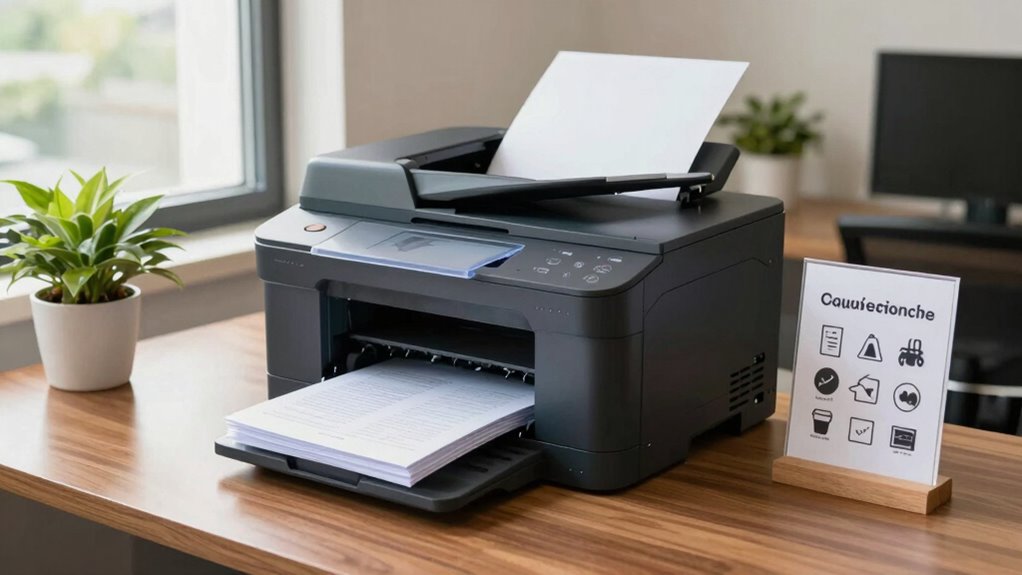
To reduce office friction, always check if printing is necessary and select the correct printer. Limit the number of pages and avoid large images unless needed. Clear jams and handle supplies carefully to keep processes smooth. Be prompt in collecting your printouts and report issues right away. Practice good etiquette by sharing resources respectfully and considering digital options for large or multiple files. Keep the workspace tidy, and you’ll discover more tips for a harmonious office environment.
Key Takeaways
- Encourage printing only necessary, work-related documents to minimize queue congestion and reduce waste.
- Promote prompt removal of printouts to prevent jams and ensure smooth workflow.
- Establish routine maintenance and timely reporting of issues to keep the printer functioning efficiently.
- Use the correct paper type and handle supplies carefully to avoid overloading and damage.
- Foster respectful printer etiquette, such as digital sharing for large or multiple copies, to promote a cooperative environment.
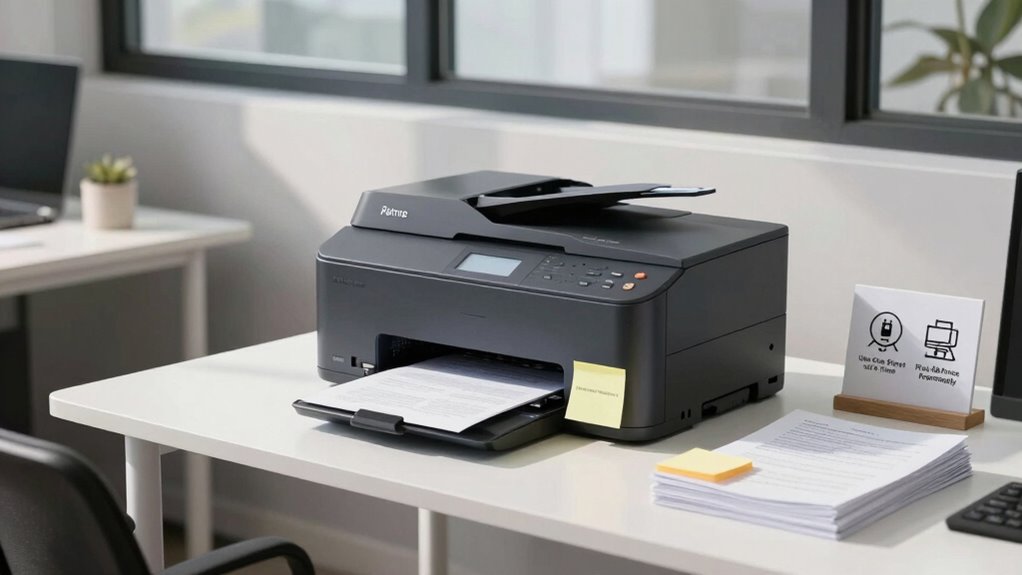
Have you ever wondered how to keep a shared printer running smoothly in a busy office or classroom? It all starts with understanding some simple shared printer rules that promote efficiency and reduce frustration. One of the most important aspects is practicing good printer etiquette. Before you print, double-check that your document is necessary and that you’ve selected the correct printer to avoid unnecessary prints. When you send a print job, try to limit the number of pages you print at once to prevent clogging up the queue and overwhelming the device. Avoid printing large images or high-resolution files unless absolutely necessary, as these can slow down the printer and cause delays for others.
Being considerate also means monitoring your printouts after they’re completed. Don’t leave your documents hanging on the output tray for too long, as they can cause jams or get mixed up with others’ prints. If you notice a jam or a malfunction, report it promptly to the designated maintenance staff rather than trying to fix it yourself—this ensures that the issue gets resolved efficiently without causing further damage. Regular maintenance procedures are crucial for keeping shared printers functioning optimally. This includes routine tasks like replacing toner or ink cartridges, clearing paper jams, and cleaning the paper trays and rollers. Many offices assign specific personnel or have scheduled maintenance to handle these duties, but it’s helpful for everyone to be aware of basic maintenance practices to avoid neglect. Additionally, printer efficiency can be improved when users are aware of how their print settings impact the machine’s operation. Being mindful of print quality settings can help reduce unnecessary wear and tear on the equipment, extending its lifespan. Properly managing printer supplies is essential for maintaining consistent performance and avoiding interruptions. Handling supplies responsibly is another key point. Always use the correct paper type and size recommended for the printer, and avoid overloading paper trays. When replacing supplies, do so carefully and dispose of used cartridges or excess paper properly to keep the workspace tidy and avoid accidental damage. It’s also a good idea to keep an eye on ink or toner levels and notify the appropriate person when supplies run low, preventing unexpected interruptions. Maintaining a clean workspace around the printer can also help prevent dust buildup and other issues that may affect performance. Proper supply management is essential for printer longevity and overall performance. Lastly, be mindful of your overall printing habits. Limit printing to work-related documents and avoid printing personal materials on the shared device. If you’re printing multiple copies or large documents, consider whether digital sharing might be more efficient. By practicing good printer etiquette and staying on top of maintenance procedures, you help create a cooperative environment where everyone can use the shared printer with minimal hassle. These small acts of consideration go a long way in reducing office friction, making the shared workspace more productive and less stressful for everyone involved.
shared office printer toner cartridges
As an affiliate, we earn on qualifying purchases.
As an affiliate, we earn on qualifying purchases.
Frequently Asked Questions
How Do I Troubleshoot Printer Connectivity Issues Quickly?
When troubleshooting printer connectivity issues quickly, start with basic printer maintenance—check for paper jams, toner levels, and power. Next, perform network troubleshooting by verifying your device’s Wi-Fi or Ethernet connection, and restart your router and printer. Confirm the printer is properly connected to the network, and update drivers if needed. These steps help resolve common issues swiftly, keeping office workflows smooth and minimizing downtime.
What Should I Do if My Print Job Gets Stuck?
If your print job gets stuck, first check the print queue on your computer and cancel any stuck jobs. Then, inspect the printer for paper jams or low ink. Clear any jams carefully and restart the printer. Sometimes, a simple reset or clearing the print queue resolves the issue quickly. Make sure the printer is connected properly and try printing again. This keeps your workflow smooth and prevents frustration.
How Can I Secure Sensitive Documents on a Shared Printer?
To secure sensitive documents on a shared printer, you should implement access permissions, ensuring only authorized users can print or view certain files. Use document encryption to protect data during transmission and storage, preventing unauthorized access. Enable secure printing features that require user authentication at the printer, such as PIN codes or ID cards. These steps help keep confidential information safe and prevent accidental or malicious exposure.
Is There a Way to Track Who Printed What?
Yes, you can track who printed what by implementing print activity logs and user authentication. Set up your printer to require user login before printing, ensuring each user’s activity is recorded. Regularly review print logs to monitor print activity, identify any unauthorized use, and maintain accountability. This approach helps you keep track of print jobs efficiently, reducing waste and enhancing security for sensitive documents.
What Are Best Practices for Replacing Printer Toner or Ink?
When replacing toner or ink, you should check the toner recycling options to dispose of cartridges responsibly. Always monitor the ink cartridge lifespan to prevent unexpected printing issues, and replace cartridges before they run out completely. Keep spare toner or ink on hand, and follow the manufacturer’s instructions for proper installation. Regularly cleaning the printer helps maintain print quality and extends the life of your cartridges, saving you time and money.
automatic paper cutter for office
As an affiliate, we earn on qualifying purchases.
As an affiliate, we earn on qualifying purchases.
Conclusion
By following these friendly, fair, and functional rules, you foster a friction-free flow in your office. Respect shared spaces, remember to replenish supplies, and promptly pick up printed pages. These simple steps strengthen team trust, streamline your workflow, and sustain a smooth printing process. When everyone adheres to these guidelines, office chaos gives way to cooperation, creating a cooperative, clutter-free, and collaborative climate. Keep these rules in mind and watch your office environment thrive!
As an affiliate, we earn on qualifying purchases.
As an affiliate, we earn on qualifying purchases.